Lab Seven: Marketing Outdoor Recreation in Chaffee County, Colorado through Queries, Clips, and Joins
|
|
The WHERE clause
is very helpful.
|
Counting points in polygons makes the Chaffee County Visitors Bureau happy! |
 |
This is a good sign for the Visitors Bureau! |
Lab Seven Goals:
Armed with a BA in GES from UCCS, you have just been hired by the Chaffee County, Colorado Visitors Bureau. Chaffee County includes the towns of Buena Vista and Salida. Your first charge is to figure out how to retain more visitors in Buena Vista overnight - the Visitors Bureau wants to see more 'no vacancy' signs on the hotels. What if you could convince visitors that Buena Vista is the perfect central location for 'bagging' Colorado Fourteeners (mountains with summits over 14,000 ft.) on thier summer vacation? This would surely keep visitors in town for a few days, and would keep them buying local food, gear, gas, and supplies. As a geographer, and one who knows the lure of the state's Fourteeners, you have a good idea: Make a map that emphasizes the high concentration of Fourteeners near Buena Vista.
In Lab Seven, you will:
- interact with ArcGIS.com (ArcGIS Online) by adding map layers to a project:
- Colorado Fourteeners (point features)
- Colorado Counties (polygon features)
- Roads of Colorado (line features)
- Populated Places of Colorado (polygon features)
- use 'where' clauses to query records from an attribute table
- use a spatial join to sum points (Colorado Fourteeners) within polygons (Colorado counties)
- create a Shapefile containing one record only (Chaffee County)
- use a clip to isolate lines (roads), polygons (populated places), and Fourteeners (points) that fall within a single polygon (Chaffee County)
Tools:
- ESRI ArcMap
- An internet connection (critical)
- Web Expression 4
- Filezilla
- Web browser
Due: Sunday, Apr. 21, 5:00 PM
What I Grade:
- Your answers to the 7 questions in red font - this includes one very important image - a professional map (see Question 7)
 |
Colorful Colorado |
Part One: Add Two Map Layers
- Open ArcMap
- From the "Add Data" button, select "Add Data From ArcGIS Online"
- Use "GES2050" as search term. Add the following TWO map layers to your project:
- Colorado Counties (GES2050)
- Colorado Fourteeners (GES2050)
- These are map layers that Brandon created and shared with the world through ArcGIS Online
- Your project should look something like this
- Save the ArcMap document as "lab_7" to your Lab Seven directory
Part Two: Explore Attributes Tables
Colorado Counties map layer:
- Open the attributes table for the Colorado Counties layer file by right-clicking on the file in the Table of Contents (TOC) and selecting "Open Attribute Table"
- IMPORTANT: Attributes tables are composed of rows (called "records") and columns (called "fields").
- Notice there are 64 counties in Colorado.
- Side note: Broomfield County was established in 2001, almost 90 years after the second 'newest' county in the state.
- Notice some of the other descriptive information in the table such as population ("POP2010") and population per square mile ("POP10_SQMI")
- Sort the county names alphabetically A to Z: right-click on the field header "NAME" and select "Sort Ascending"
- Question 1: Sort the "POP2010" field. Which Colorado county had the highest 2010 population and which county had the lowest 2010 population?
- Close the attributes table for the Colorado Counties layer file
Colorado Fourteeners map layer:
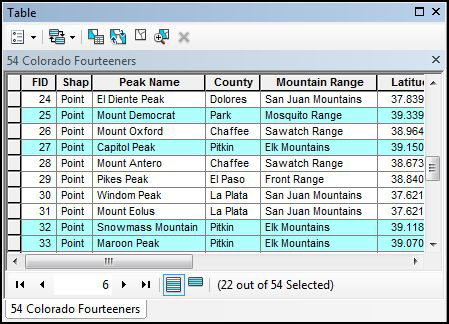
- Open the attributes table for the Colorado Fourteeners layer file
- Sort the Fourteener names alphabetically A to Z: right-click on the field header "Peak_Name" and select "Sort Ascending." Blanca Peak to Windom Peak, right?
- Notice some of the other descriptive information in the table such as "Elevation" and "County"
- Question 2: Sort the mountain range field ("Mountain_R"). How many Fourteeners are part of the 'Front Range' mountain range?
- Save your project
Part Three: Query and Select Attributes
- In the Colorado Fourteeners attributes table: from the "Table Options" button in upper left corner, select "Select by Attributes"
- We want to determine how many Colorado Fourteeners are equal to (=) or are above (>) 14350 ft. in elevation
- Enter the following WHERE clause into the query box: "Elevation" >= 14350
- Note that THREE records are selected in the attributes table - Mount Elbert, Harvard, and Massive.
- Question 3: How many Fourteeners are >=14200 ft?
- You can perform more complex queries such as: "Latitude" >= 39 OR "Longitude" >= -106 AND "Elevation" >= 14250
- Question 4: How many Fourteeners are part of the San Juan Range?
- Clear (de-select) the features that are currently selected by clicking on a "Clear Selection" icon
- Close the attributes table for the Colorado Fourteeners layer file
- Save your ArcMap project
Part Four: Spatially Join Two Layer Files
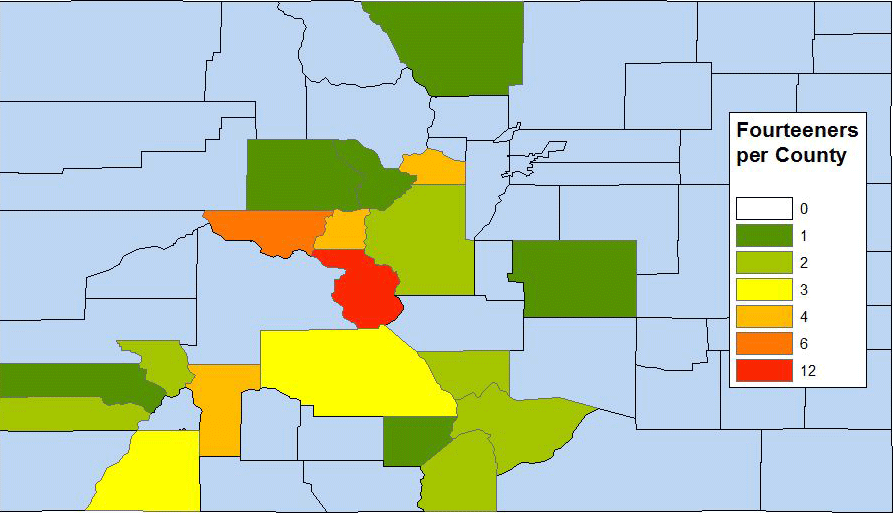
- We are interested in counting how many Fourteeners are in each county (to highlight Chaffee County's plethora of Fourteeners)! This is easily done by sorting attribute data (e.g., 3 in Alamosa County, 1 in Boulder County, etc.) and by selecting by attribute as outlined in Part Three BUT we want to MAP Fourteeners by county. In other words, we want to create a new attribute field in the Colorado Counties layer file that shows the SUM of Fourteeners by county. This calls for a "spatial join"
- Right-click on the Colorado Counties layer file in the TOC and select "Joins and Relates," then "Join..."
- You want to SUM the number of points (Fourteeners) within each polygon (Colorado County); make sure the settings are exactly like this. You can leave the default file name. Click ok.
- You now have a new Shapefile named "Join_Output"
- Open the Attributes Table of the new Shapefile and "Sort Descending" the field called "Count_"
- This new Shapefile contains a field that tells us how many Fourteeners there are by county!
- Question 5: How many counties in Colorado contain Fourteeners?
- Close the Attributes Table. In the TOC, rename the new "Join_Output" Shapefile "Fourteeners by Colorado County"
- Save your project
- Next, let's map this information!
Part Five: Map Fourteeners by Colorado County
- Right-click on the new "Fourteeners by Colorado County" Shapefile, go to "Properties..."
- Click on the "Symbology" tab. Set the "Categories" to "Unique values". Make sure the "Value Field" is set to "Count_". Click the "Add All Values" button
- While still in the "Layer Properties" click on the "Labels" tab and use these settings. Close the "Layer Properties" window
- In the table of contents, right-click on the "Fourteeners by Colorado County" Shapefile and turn on labels
- The map shows us that Chaffee County is the winner!
- Question 6: How many Fourteeners are there in Chaffee County?
- There are lots of ways to improve your map (return to the "Symbology" tab in the "Layer Properties"). As examples, you could
- Save your project
- Use the "Symbology" tools to find a nice symbol for the Fourteeners. This map shows the cluster of Fourteeners in Chaffee County - more than in any other Colorado county!
- Next, let's focus on Chaffee County
Part Six: Creating a New Shapefile that Contains ONLY Chaffee County
-
 |
 |
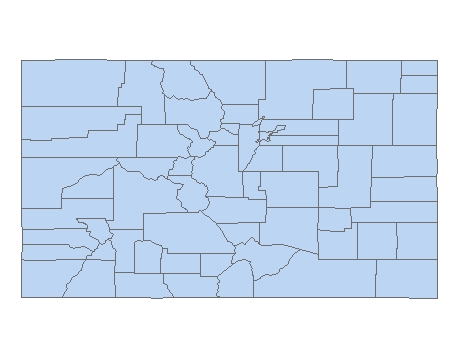
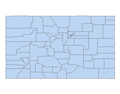
all counties |
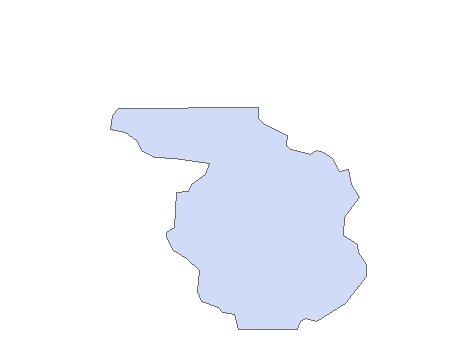
Chaffee only |
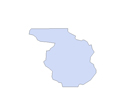
In order to capture (clip) only the features within Chaffee County, we need to make a new map layer of only Chaffee County. The county's boundary will serve as the cookie cutter shape, e.g., the clip feature.
- Open the "Fourteeners by Colorado County" attributes table
- Select only the record showing Chaffee County. Close the attributes table
- Right-click on the "Fourteeners by Colorado County" layer in the TOC
- Select "Data" then "Export Data" Use these settings (the important part here is that you are only exporting the "Selected features" - the Chaffee County polygon - and nothing else)
- Name the new Shapefile "chaffee_only"
- Click "Ok" and then, when asked if you want to add the exported layer to your map, click "Yes"
- Clear (de-select) the feature that is currently selected by clicking on a "Clear Selection" icon
- Now you have a new layer file (a Shapefile) containing ONLY the Chaffee County polygon (take a look at the attributes table)!
- This single polygon feature will become the 'clip feature' in the next section
- In the TOC, rename the new file "Chaffee County"
Part Seven: Clipping Roads (lines), Popuated Places (polygons), and Fourteeners (points) from Chaffee County (Polygon) -- the Clipping Feature
-
 |
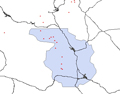 |
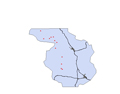 |
clip feature |
before clips |
after clips |
Time to focus on Chaffee County
- From the "Add Data" button, select "Add Data From ArcGIS Online"
- Use "GES2050" as search term. Add to your project:
- Roads of Colorado (GES2050)
- Populated Places of Colorado (GES2050)
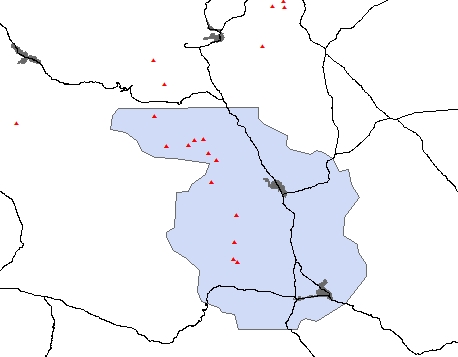
- Manually set the map scale to 1:500,000. Your project should look something like this
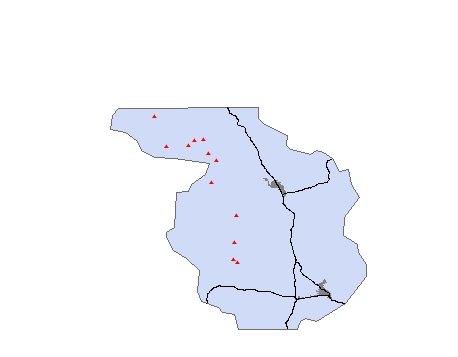
- Select "Geoprocessing" and then "Clip" from the main menu. Use these settings as you perform the clip on roads
- Perform another clip (Chaffee County is the clip feature); this time using the "Populated Places" layer file
- Perform another clip (Chaffee County is the clip feature); this time using the "Colorado Fourteeners" layer file
- Your project should look something like this
Part Eight: Add Labels and Make a Professional Map
- The goal here is to make a nice map that shows roads, populated places, and Fourteeners in Chaffee County.
- You can use the "Layout View" in ArcMap to make a professional map similar to this one
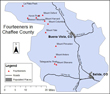 |
a work in progress |
- You must realize that the cartography process can (and should) take some time and a lot of thought.
- Go to "Layout View" (View > Layout View)
- Add to the layout view:
- Question 7: Do your best to produce a map of sufficient quality that you'd be proud to show it off to the Chaffee County Visitors Bureau at a job interview. Place the map, along with a caption, on your Lab Seven web page. Stop improving your map the moment you feel overwhelmed (you could spend weeks on this sort of thing)!