How to convert USGS airborne lidar .las files (from USGS' CLICK) to DEMs and TINs in ArcMap 10


DEM in ArcScene
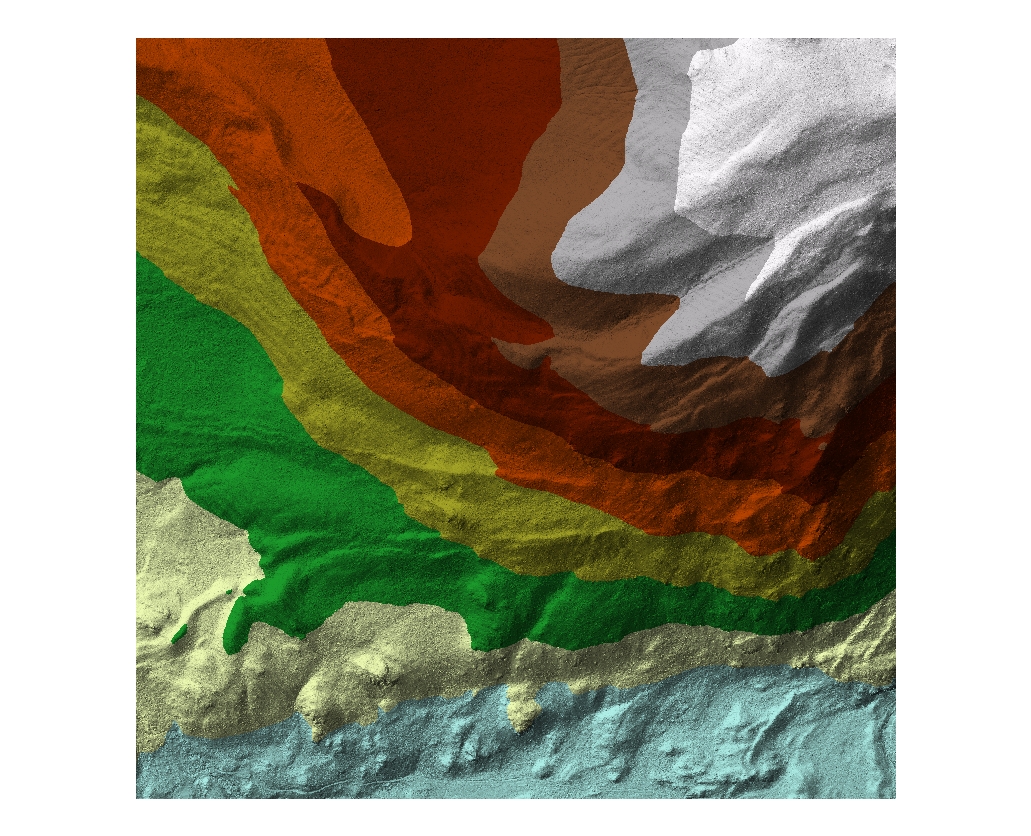
1st return DEM made from 0.7m ground sample distance airborne lidar of a section of the Denver Metro Area.
Natural Neighbor was used to interpolate the point data to a raster format. Image
was generated in ArcScene by draping the DEM over itself.

Goal:


Software:


Steps:

  1. Download and extract/unzip an airborne lidar .las file from the USGS Center for Lidar Information Coordination and Knowledge (CLICK) site. Read through the metadata .xml file. For this tutorial, 2008 Denver Metropolitan Area and 2010 Grand County, Colorado airborne lidar were used. Beware that with a high resolution nominal pulse spacing down to 0.7 meters, a rather small coverage .las file (e.g., 110 MB) easily contains about 7 million points.
  2. In ArcMap 10 ArcToolbox: LAS to Multipoint (3D analyst > Conversion > From file > LAS to Multipoint). Use the extracted .las file as input file.
  3. From the Multipoint file, generate a preliminary view of
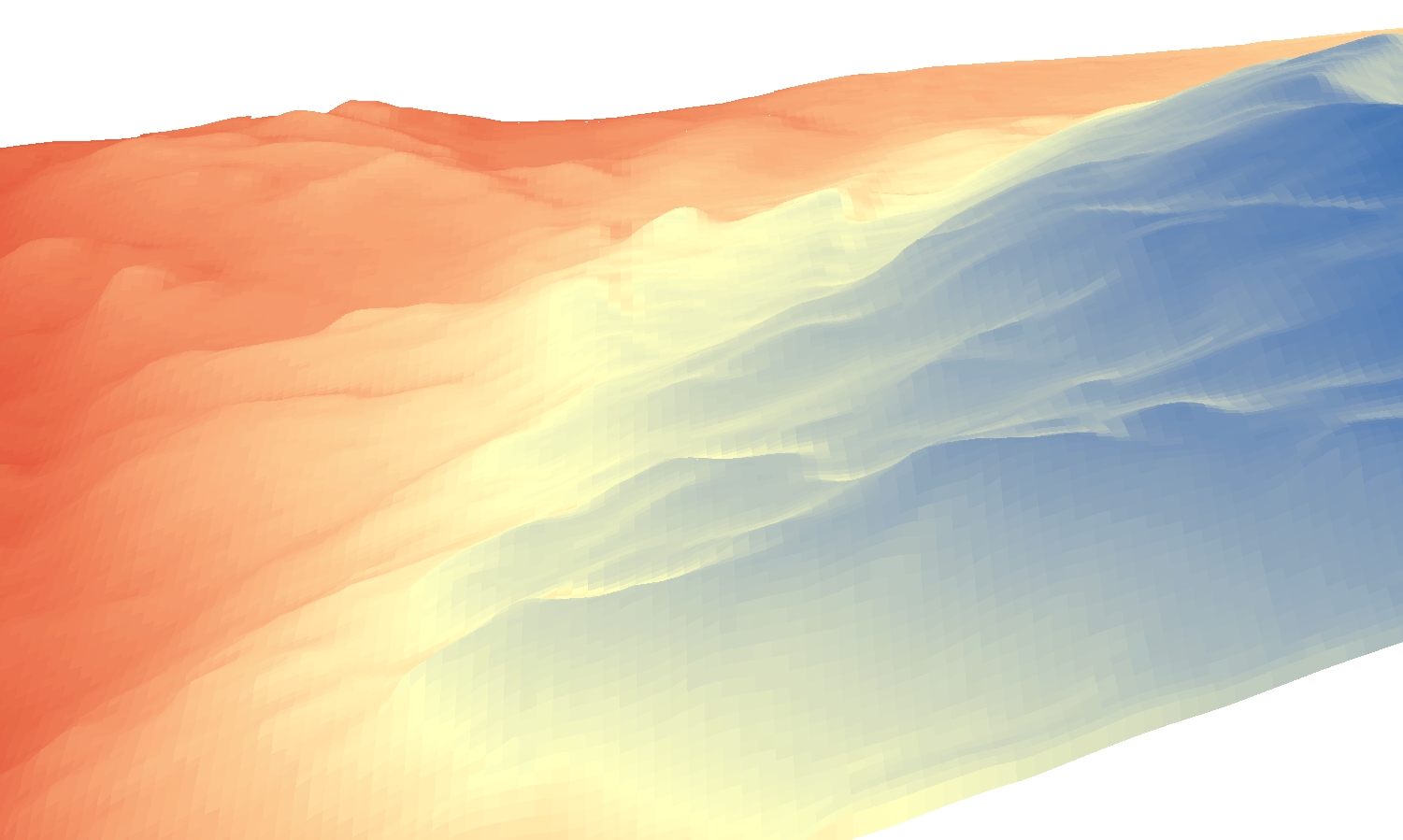
    'Point to raster' DEM of an area just north of Grand Lake, CO as viewed in ArcScene. Format is .tif, cell assignment type is MEAN, cell size is 6, and value field is Shape.Z.
    your data in a raster format: Use 'Point to Raster' (ArcToolbox > Conversion Tools > To Raster > Point To Raster). 'Point to Raster' does not interpolate the point data -- so depending on the cell size used, there will be holes in the output DEM. Below are 'Point to Raster' steps extracted from this Jan. 2011 ESRI White Paper.
  4. ONLY COMPLETE THIS STEP (STEP #4) IF YOU WANT TO POPULATE YOUR LIDAR FILE WITH XYZ VALUES (IMPORTANT: Step #4 is not necessary in order to generate DEMs and TINs: Both formats can be generated directly from the Multipoint file created in step #2 above). If a cursory look at the data is not helpful, skip to step #5 (for DEM) or step #6 (for TIN).
  5. For a DEM: Interpolate using Natural Neighbor. In ArcMap 10 ArcToolbox: (Spatial Analyst Tools > Interpolation > Natural Neighbor). DEMs can be generated directly from the Multipoint file or from the file into which the XYZ coordinates were created (results are same). If using the Multipoint file, make sure 'Z value field' is set to 'Shape.Z'. If using the file into which the XY coordinates were generated, make sure the 'Z value field' is set to 'POINT_Z' ). Either way, use the pull down menu in the Natural Neighbor window to set this.
  6. For a TIN: A TIN can be created directly from a Multipoint file (see step #2) or from the file into which the XY coordinates were generated (see step #5). In ArcMap 10 ArcToolbox: (3D Analyst Tools > TIN Management > Create TIN). Set the 'Imput Feature Class' to the Multipoint file OR to the file with the XY Coordinates. For the former, make sure the 'height_field' is set to Shape.Z (use the pull-down list to find Shape.Z); for the latter, again using the pull-down list, make sure the 'height_field' is set to POINT_Z.
Problems? Ask Brandon: bvogt @ uccs.edu