Working with USGS airborne lidar .las files (from USGS' CLICK) in ArcMap 10.1


.las profile view
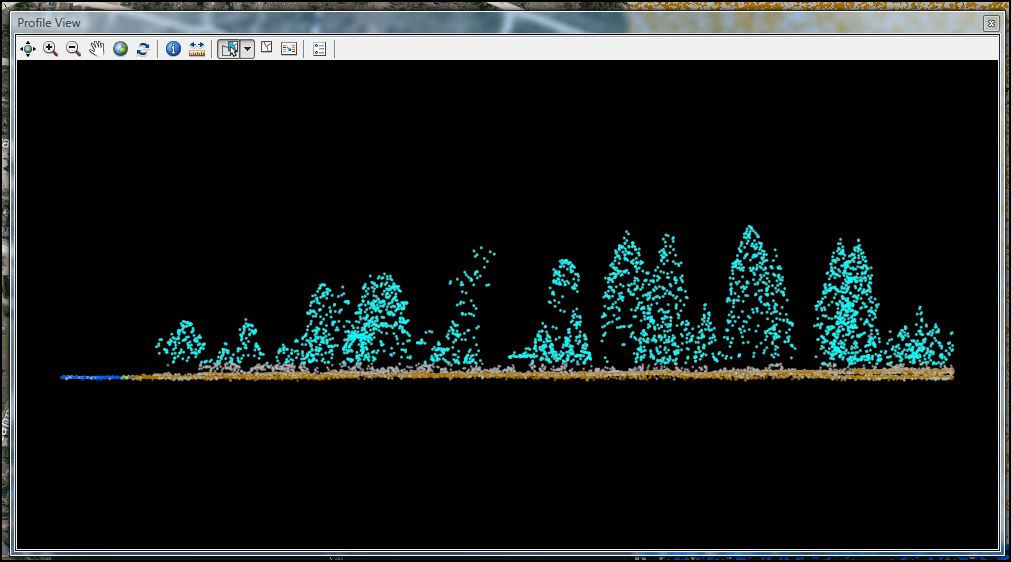
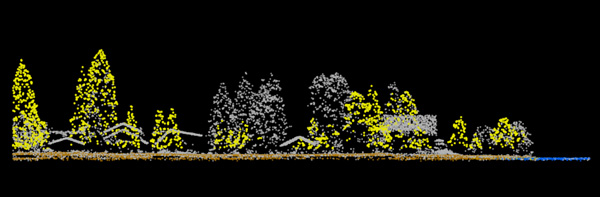
Several classes of airborne lidar data along a cabin-lined stream, Grand Lake, Colorado.

Goal:


Software:


Steps:

  1. Acquire a set of airborne lidar .las files from the USGS' Center for Lidar Information Coordination and Knowledge (CLICK) site or similar.
  2. Download and extract/unzip a set of airborne lidar .las files. For this tutorial, four 2010 Grand County, Colorado .las tiles were downloaded.
  3. From ArcMap 10.1, open ArcCatalog and browse to the folder in which the unzipped .las files are stored. Right-click on the folder in ArcCatalog and create a new .las dataset.
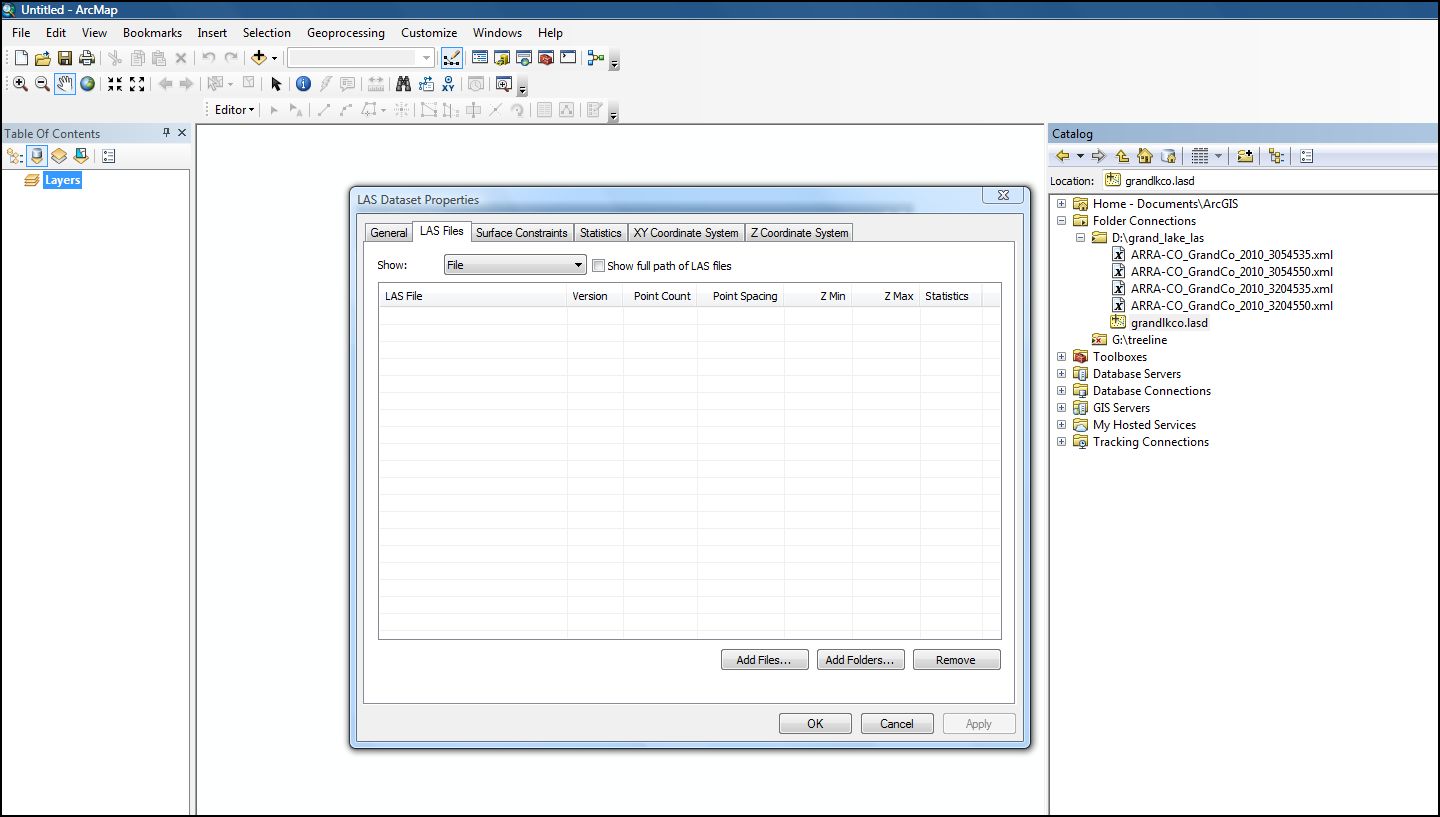
  4. Open up the layer properties and add your .las files. In this case, all four were added.
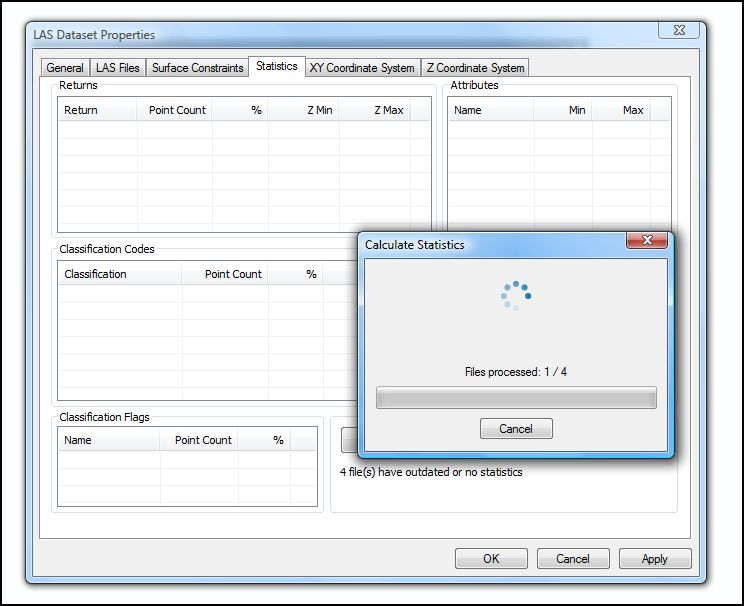
  5. While in the LAS Dataset Properties, click on the 'Statistics' tab and select 'calculate'. Observe the 'Classification Codes' for your data.
  6. While in the LAS Dataset Properties, click on 'XY Coordinate System.' Observe the coordinate system that was inherited from the .las files.
  7. Drag your .las dataset from ArcCatalog into ArcMap.
  8. Likely a wireframe map is visible (no lidar point data at this scale because there are too many points to display). Look at the layer properties to see how many points are in the dataset (34 million in this case).
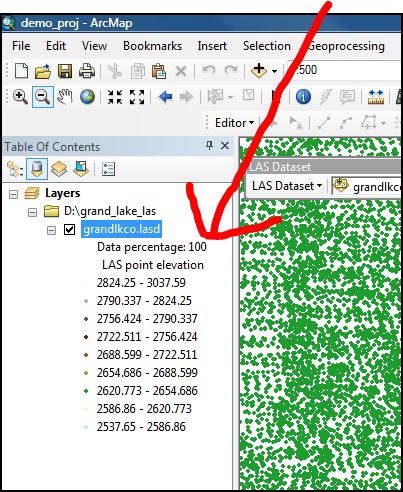
  9. Zoom in to 1:2,000 or so and a sample of points will be displayed (14.7% in this case).
  10. Note that you can change the percent of points rendered in the Layer Properties 'Display' tab. Experiment by checking the 'Use scale to control full resolution' tab (100% of points) at scales at and larger than 1,5000. Zoom in to something like 1:500 (100% of points will be displayed)
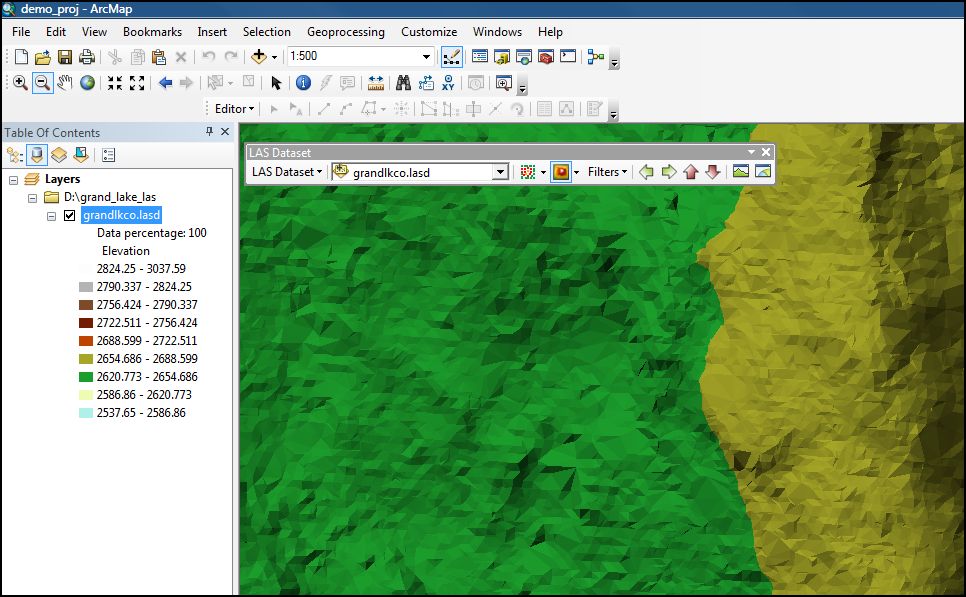
  11. From the 'LAS Dataset' toolbar, change the settings (Filter) to see ground points (bare earth) only as an elevation TIN.
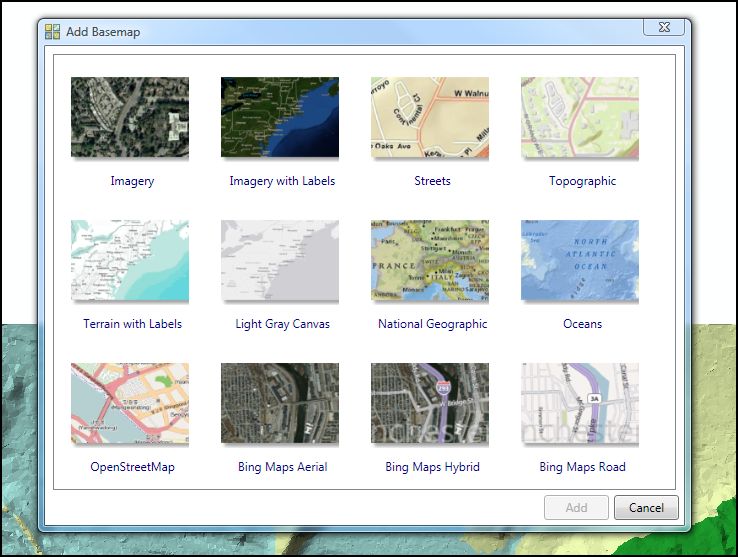
  12. For the next few steps, it is helpful to add a basemap from ArcGIS Online (such as Bing Maps Hybrid).
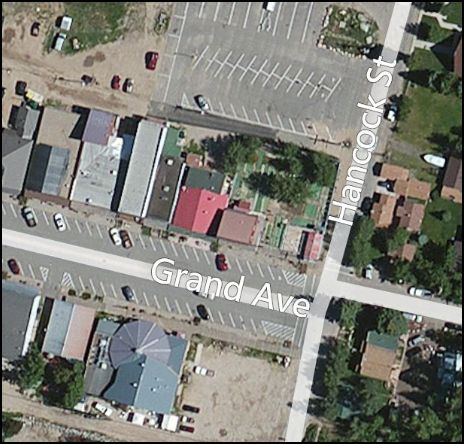
  13. Find an object of interest in your dataset (e.g., a large building, tree, or small landform). In this example, the a section of downtown Grand Lake, Colorado is used.
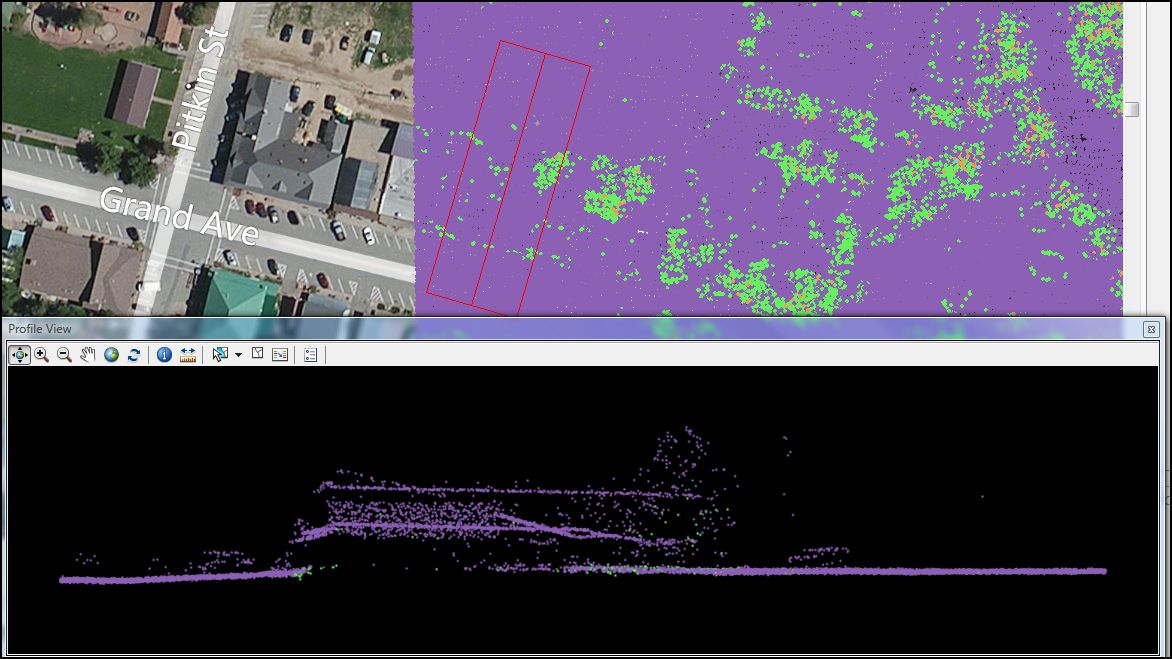
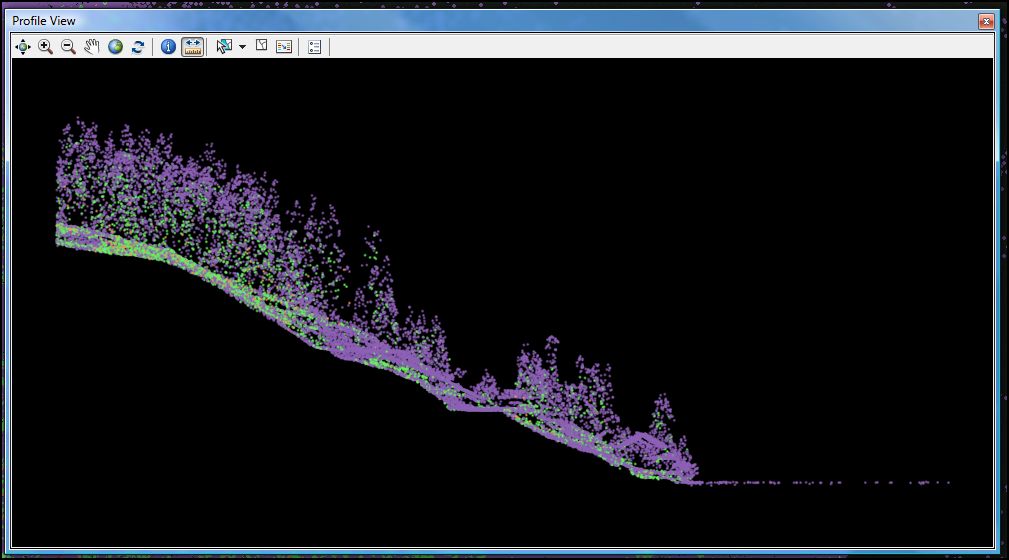
  14. View all points. Click on the 'LAS Dataset Profile View' button in the 'LAS Dataset' toolbar. Define an area that passes through your object of interest.
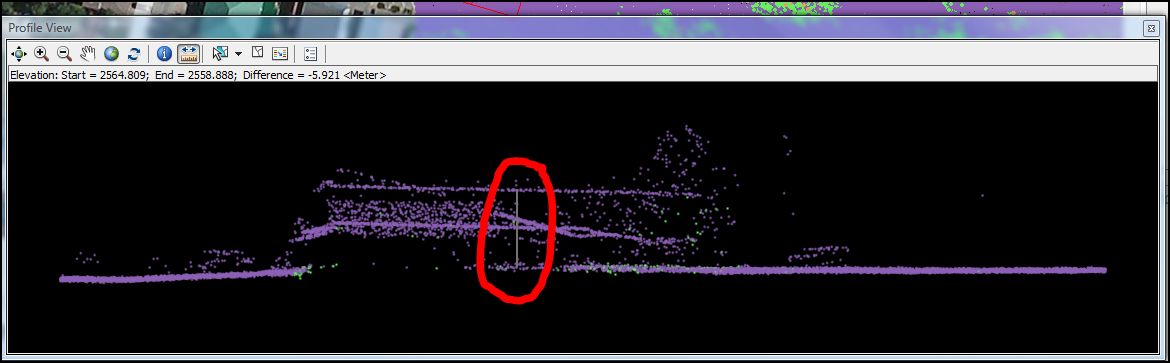
  15. You should be able to identify rooflines, objects, etc. in the profile data. You can measure distances using the 'Measure' tool from the 'Profile View' window. For example, this downtown building is 5.921 meters (19 feet) high. Cars along the street measure about 1.72 meters (5.4 feet) high. From this section of a lake's shoreline, you can see houses, a roadbed, and coniferous trees.
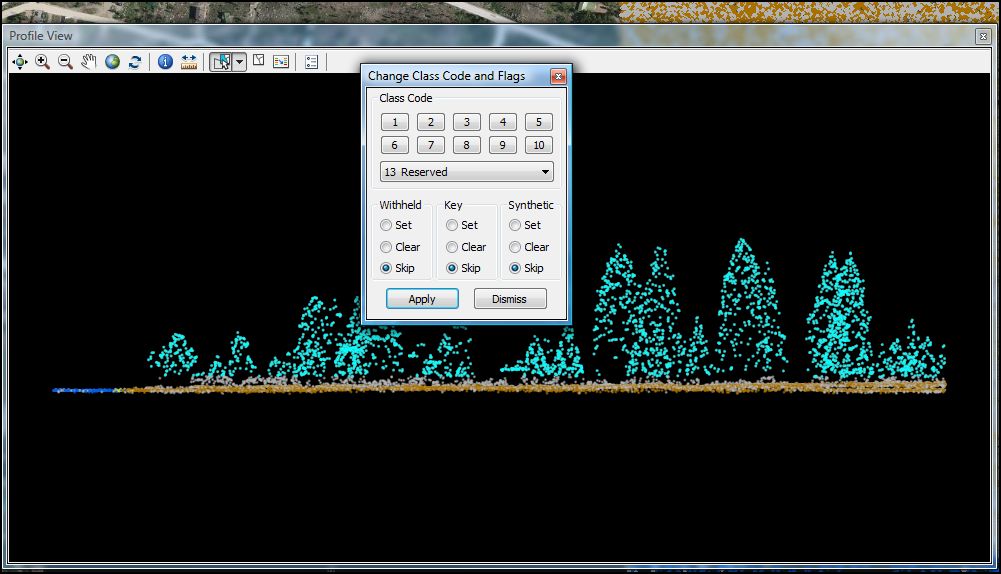
  16. From the profile view, you can create new classes (class codes) of points. For example, here some trees along a stream are selected using the 'Select Points by Polygon' tool.
  17. The new class code for the selected points is set to '13'. In properties, change the label name of point class '13' to whatever.
  18. Zoom in to this area and from the 'LAS Dataset' toolbar, use the 'LAS Dataset 3D View' to visualize the added class code.

NOTE: Much of the workflow outlined in this tutorial was borrowed from here and here.

Problems? Ask Brandon: bvogt @ uccs.edu